Resubmit from InCommand Outstanding Jobs
InCommand users can resubmit undelivered dictations to ShadowScribe directly from Outstanding Jobs. This allows jobs to be reprocessed through speech-to-text (STT), InstaNote, and post-processing using updated or existing values for clinician, document type, and location.
This feature supports correcting configuration issues, improving output accuracy, and recovering jobs that failed during STT or downstream processing, while maintaining the original Note ID.
Prerequisites
- The InCommand transcriptionist profile must have the feature enabled by the eSOne Support or SAC teams.
- The InCommand transcriptionist profile must have the Can Resubmit Outstanding Jobs to ShadowScribe role enabled in InCommand → Maintenance → Transcriptionists → Edit Transcriptionist → InCommand Security Roles.
- The dictation must still be available to play from InCommand Outstanding Jobs.
Resubmit from Dictation Information
- Navigate to Outstanding Jobs, select a client and optional search criteria, and run a search to retrieve the necessary dictations.
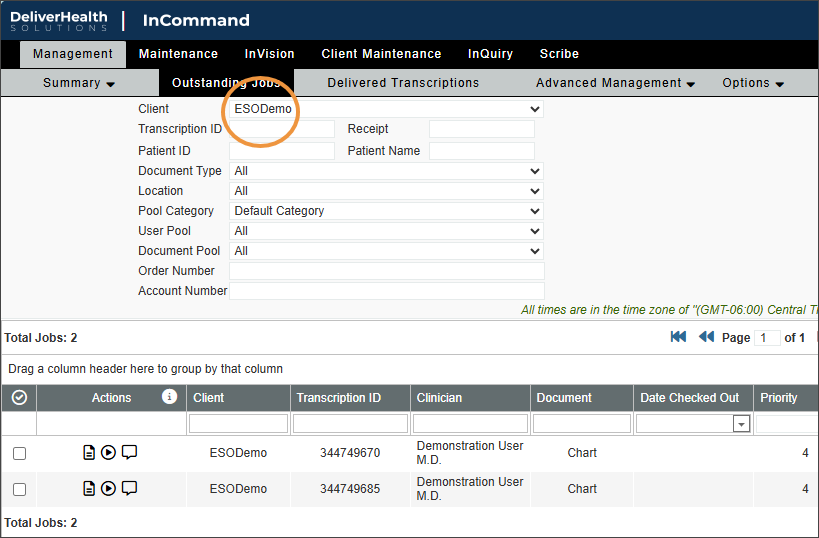
- Click the dictation to open Dictation Information.
- (Optional) Modify the Clinician, Document Type, or Location if needed.

- Expand the Status list and select ShadowScribe.

- Click Save.

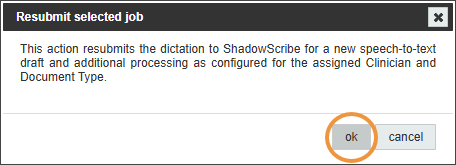
- In the confirmation prompt:
- Click OK to proceed with the resubmission, or
- Click Cancel to return without resubmitting.
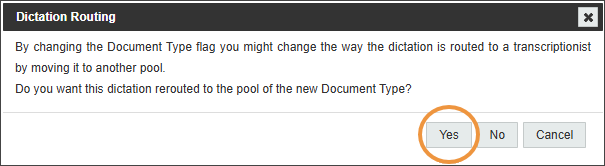
- If prompted that pooling and routing may change, click Yes to proceed.
- If the Document Type and Clinician are configured for Direct Delivery, the job will not be routed to QA.
- If the Document Type and Clinician are configured for Direct Delivery, the job will not be routed to QA.
- You will be returned to the Outstanding Jobs search results.
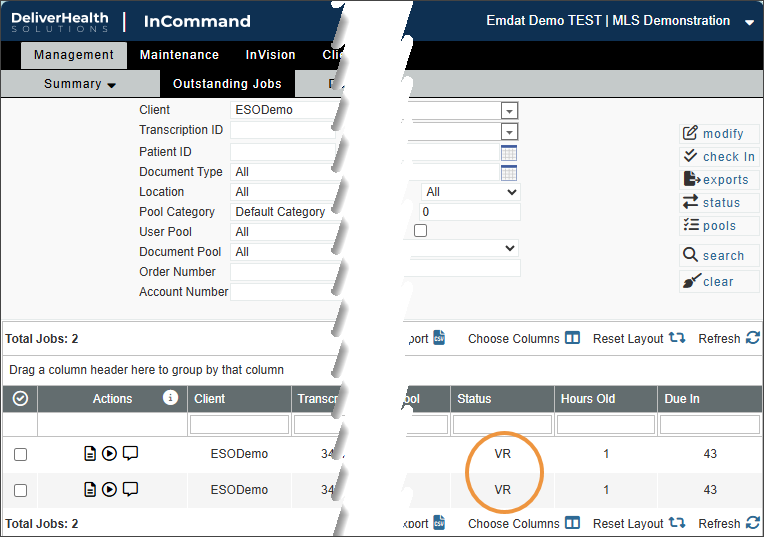
- The status of the resubmitted dictation in the Outstanding Jobs grid will show VR until processing is complete.
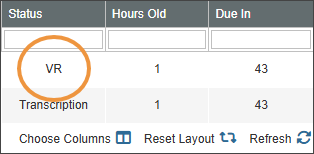
- The status of the resubmitted dictation in the Outstanding Jobs grid will show VR until processing is complete.
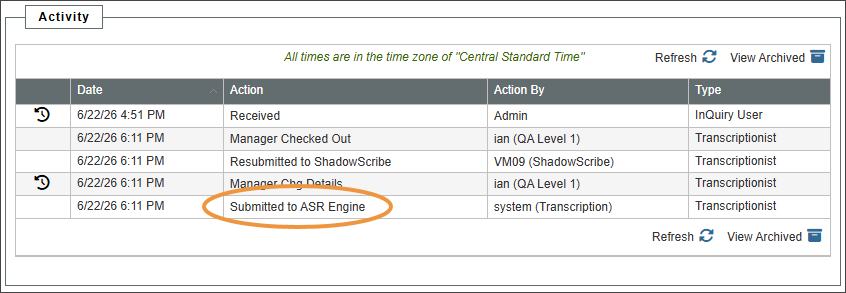
- The Activity Log will include a new Submitted to ASR Engine action.
Resubmit Multiple Dictations
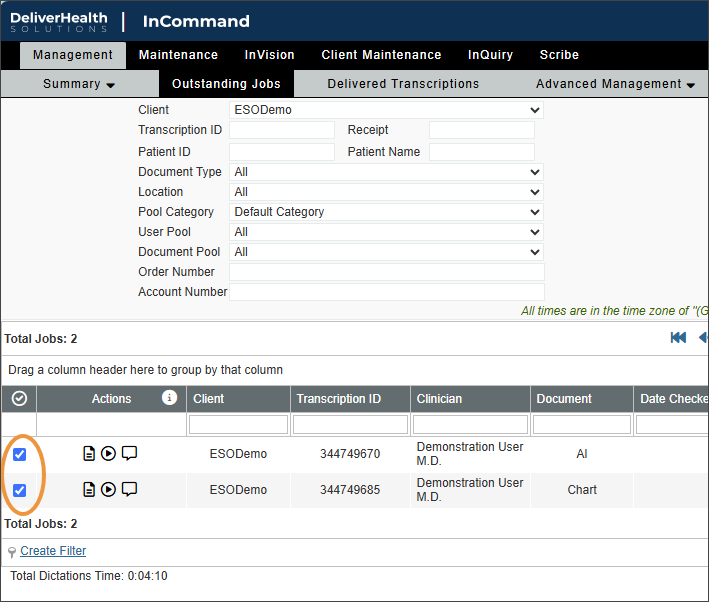
- From Outstanding Jobs, select one or more dictations using the selection checkbox.
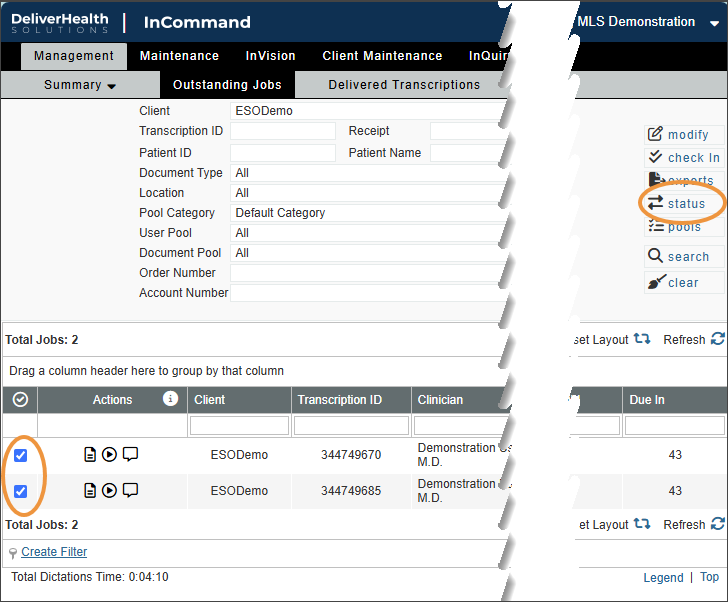
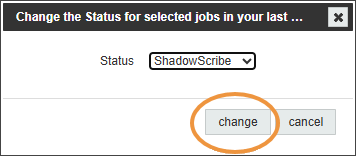
- Click Status.
- Select ShadowScribe.
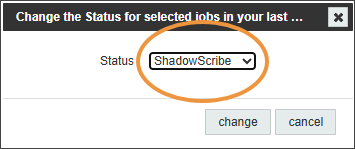
- Click Change.
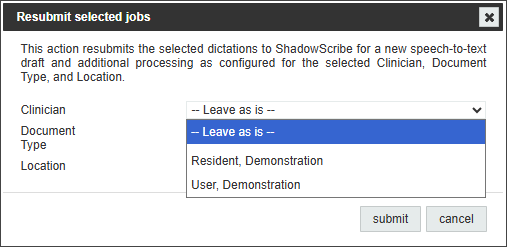
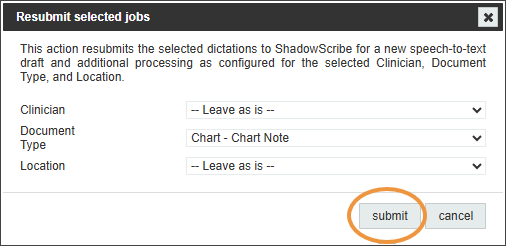
- To keep the existing document type, clinician, and location, leave the selections set to -- Leave as is --. Otherwise, update the values as needed.
- Click Submit.
- The resubmitted dictations will show VR status during processing.
Processing Behavior
- The normal workflow is followed when the draft is returned.
- Direct Delivery jobs are delivered automatically.
- Promoted jobs will appear at the configured ShadowScribe Transcription or QA level.