EHRClient User Manual
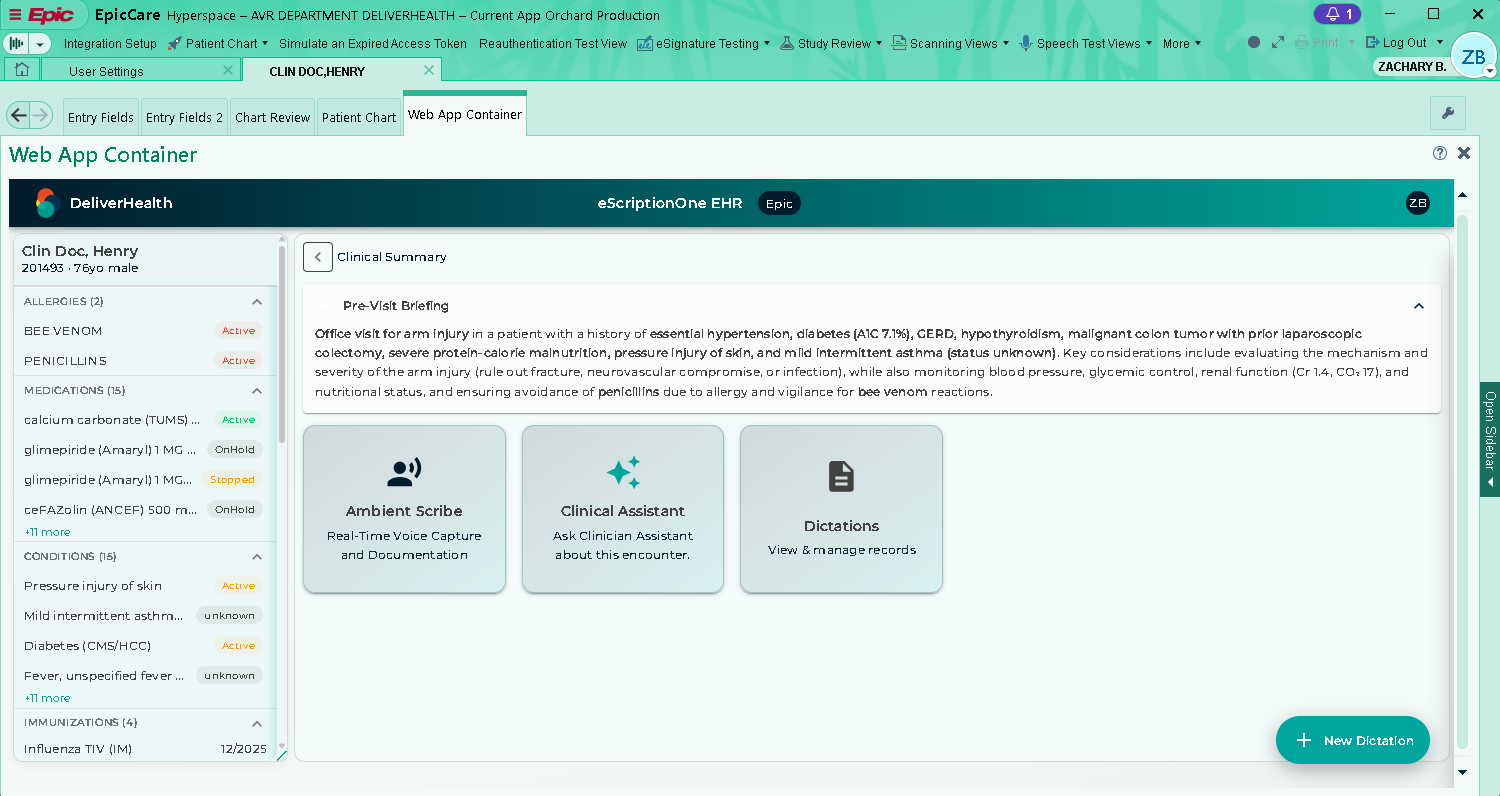
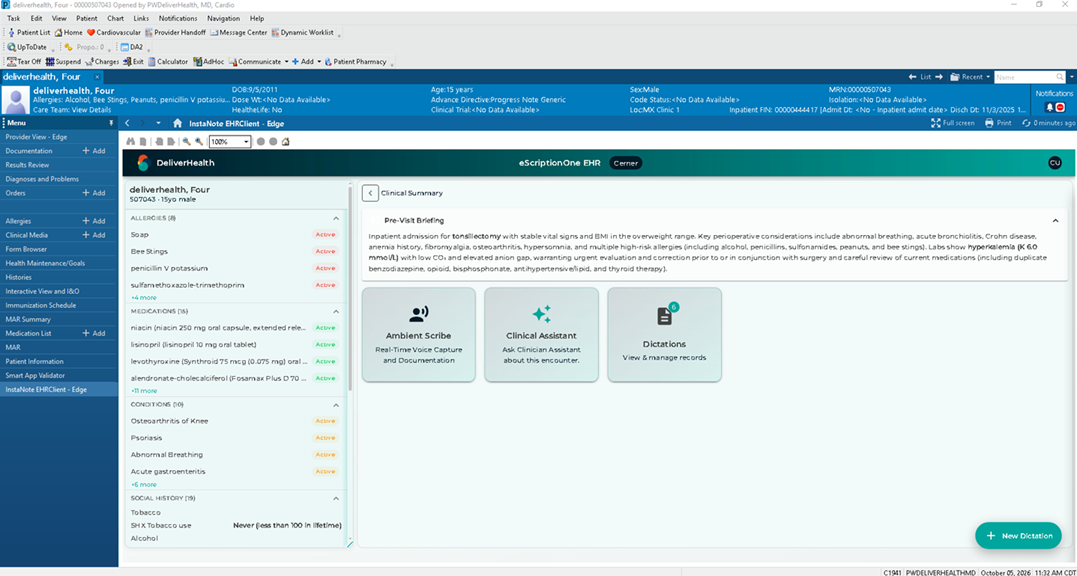
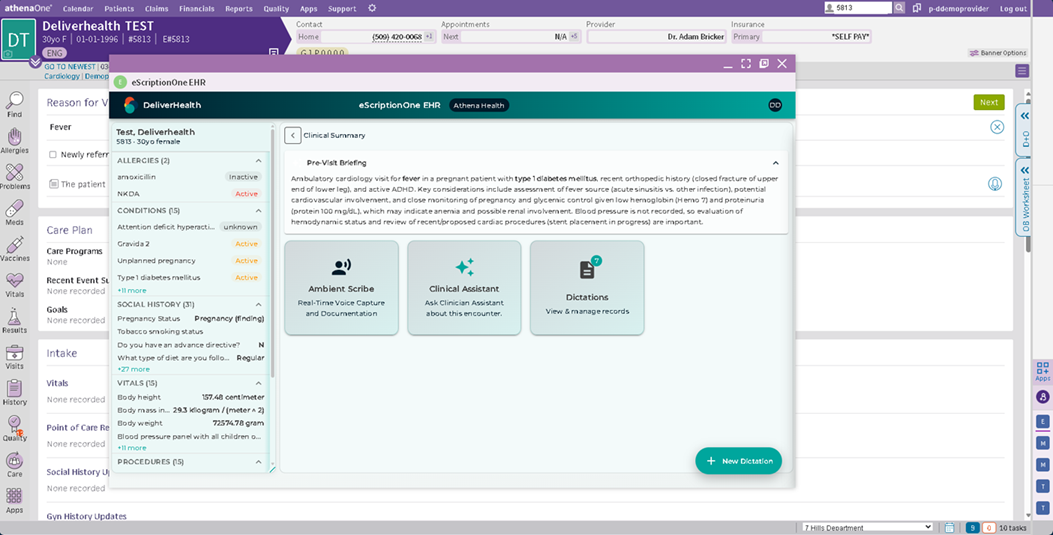
EHRClient is a clinician-focused documentation app embedded in your EHR. It supports point-of-care workflows such as dictation and ambient documentation, note editing, and other features using the patient and encounter context opened in the EHR.
This is different from the InQuiry Note Editor, a separate web-based workspace for editing existing notes and related details. See Using the Note Editor for that workflow; this manual covers EHRClient's embedded clinician workflows.
Important: Follow your organization’s policies for patient identification, clinical documentation, and handling protected health information. Always review clinical content before using it.
Getting Started
- Open the patient chart and the intended encounter in your EHR.
- Launch EHRClient from the embedded workflow provided in the EHR.
- Confirm that EHRClient has opened for the correct patient and encounter before recording or working with documentation.
- If the patient or encounter context is missing or incorrect, stop and follow your organization’s process to reopen the workflow. Do not continue with unverified context.
Example Application Embedded - Epic Hyperspace
Example Application Embedded - PowerChart
Example of Wed-Based Embedded - Athena
Features
Production
- Dictation – Record spoken content for a dictation workflow.
- Ambient – Capture a clinician-patient conversation and generate note content.
- Note Content Editing – Edit Content, Apply Templates and Review content before submitting to EHR.
Beta
- Suggested Codes – View code suggestions as part of the documentation workflow.
- ClinicianAssist – Beta clinical assistance feature.
- NoteAnalysis – Beta feature for analyzing note content.
Coming Soon
- Pending Orders - Add pending Orders for Diagnoses
Beta features are experimental. Review their output carefully and follow your organization’s policies before using it in clinical documentation or decision-making.
Dictation
Use Dictation when you want to record a spoken dictation.
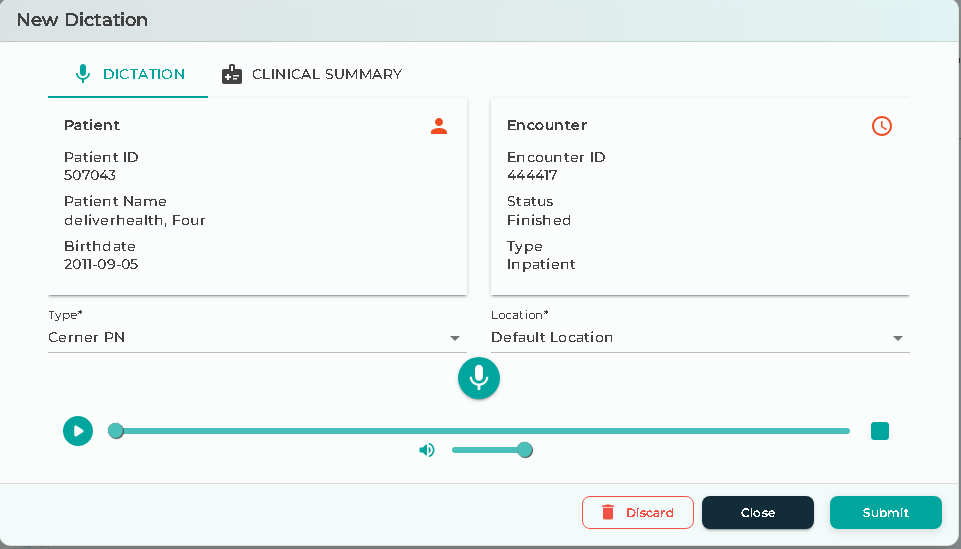
- Open the Dictation workflow from within EHRClient.
- If prompted, select the document type and location for the dictation.
- Select the microphone control to start recording.
- Dictate your content.
- Select the recording control again to stop.
- Play back the recording and confirm that it is complete and understandable.
- Use the workflow’s submit control to submit the dictation.
Dictation workflow with microphone and playback controls
Ambient
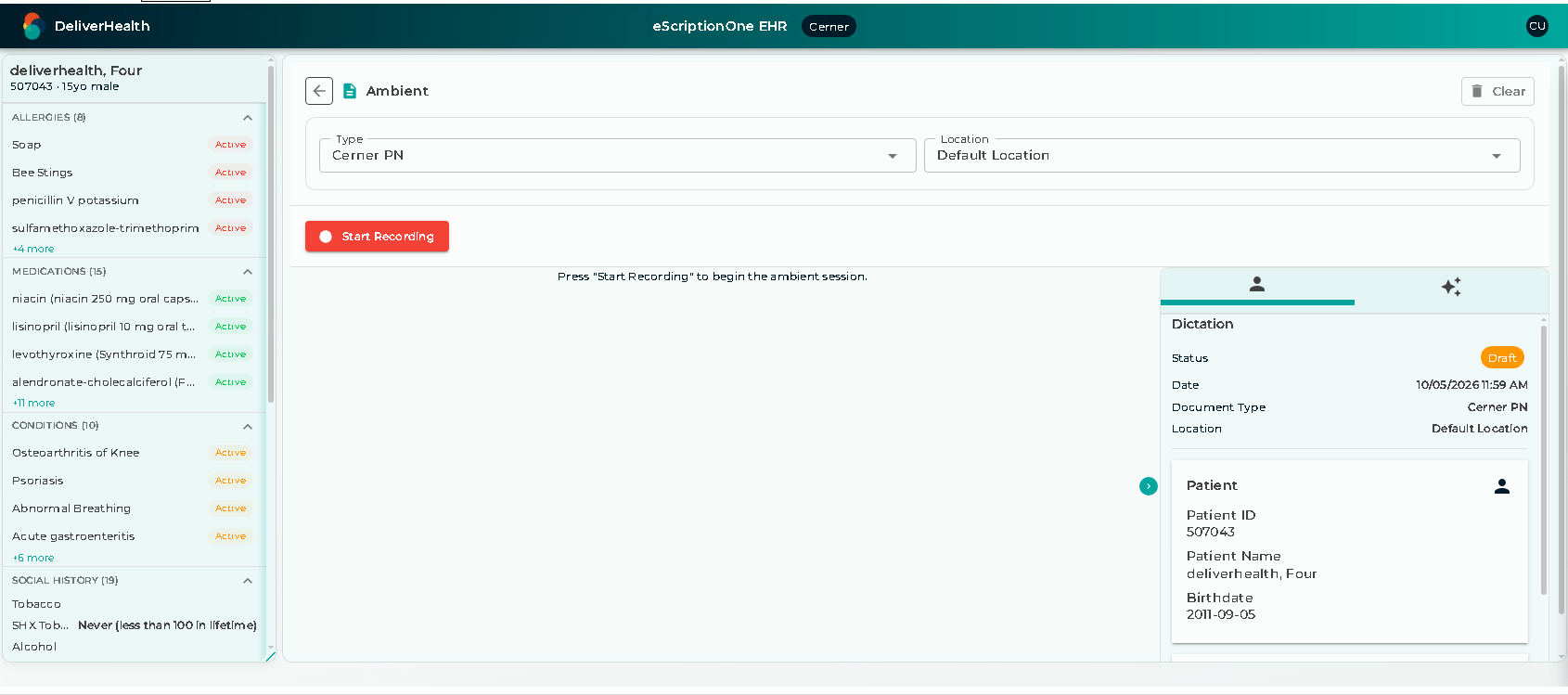
Use Ambient to capture a clinician-patient conversation and generate note content.
- Open the Ambient workflow from within EHRClient.
- Before recording, review the Type and Location selections and change them if needed.
- Select Start Recording.
- During the conversation, use Pause to temporarily pause recording. Select Resume to continue.
- Select Stop & Generate when the conversation is finished.
- Wait while the note is generated, then review and edit the resulting content.
- Confirm the content is accurate and follow your organization’s workflow for completing the documentation.
Use Clear only when you intend to remove the current Ambient content and audio from the panel.
Ambient controls, live transcript, and generated note
Editing Note Content
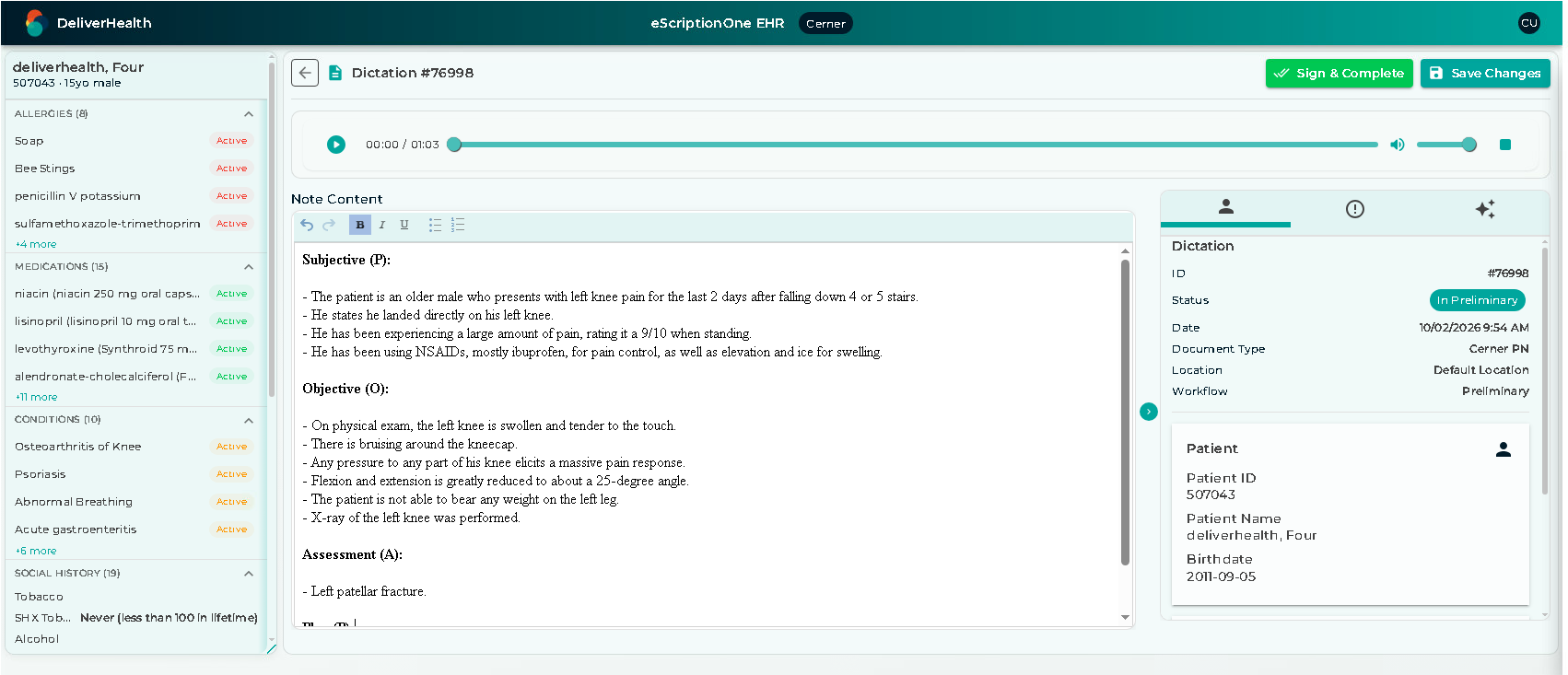
Use Note Content Editing to review and update note text before completing the documentation workflow.
- Open Note Content Editing in EHRClient and confirm the patient and encounter are correct.
- Review the existing or generated note content.
- Edit the text using the available editor controls. Correct errors and add any necessary information.
- Read through the complete note to confirm it is accurate and complete.
- Follow your organization’s workflow to submit or complete the documentation.
Templates and generated content may need correction. Review the full note before proceeding.
Note content editor
Microphone Access
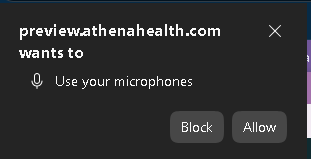
Your browser may ask for permission to use the microphone. Allow access to record.
If recording does not work:
- Check that the browser has microphone permission.
- Confirm that the intended microphone is connected and selected in your device settings.
- Check that another application is not preventing microphone access.
- Contact your support team if the issue continues.
Browser microphone permission prompt
Reviewing Documentation
Before submitting or completing documentation:
- Confirm that the content belongs to the correct patient and encounter.
- Review dictation audio and generated note content for accuracy and completeness.
- Correct errors using the available controls.
- Review Suggested Codes and any Beta feature output rather than assuming they are correct.
Troubleshooting
The patient or encounter is incorrect or missing
Stop the workflow. Verify the patient chart and encounter in the EHR, then reopen EHRClient from that embedded workflow. Contact the support team if the context remains incorrect or unavailable.
Recording does not start
Check microphone permission and device selection. If the issue persists, contact your support team.