Reprocess Note in InScribe
InstaNote's Reprocess feature enables InScribe users to regenerate the AI processing of a document using the original speech-to-text (STT) draft created when the dictation was received, along with the InstaNote configuration of the selected document type. Since the original dictation is not reprocessed, the turnaround time for the reprocessed note is faster. This feature is especially helpful when a dictation was submitted with an incorrect document type. By utilizing the reprocess feature, users can maintain the integrity and accuracy of clinical documentation, thereby enhancing the quality of patient care.
InstaNote documents can be reprocessed in InScribe if the dictation was previously processed by ShadowScribe and both the selected document type and dictator have ShadowScribe enabled. In addition, InScribe version 7.20.25055 or later must be installed, and the InScribe user profile must have the reprocess option enabled.
Reprocessing an InstaNote document in InScribe includes an additional enhancement not available in InQuiry. The speech-to-text (STT) draft can be edited to correct or add any parts of the dictation that were misinterpreted or omitted during the initial processing. With the updated STT draft, InstaNote will generate a more accurate and detailed note.
How to Reprocess InstaNote in InScribe
Tip
Once a note has been reprocessed in InScribe, the original draft cannot be restored within InScribe.
To revert to the original draft, you may check the job back in without promoting or delivering the note. Alternatively, you can copy the original note text from the editor before reprocessing and paste it back into the editor if needed.
- Access the note.
- Log in to InScribe.
- Select the note from the queue.
- Verify the correct Document Type and Dictator are selected in the Info tab.
- If the dictation was received with the incorrect document type or dictator, change these values before reprocessing the note.
- Review the speech-to-text draft.
- Open the STT Draft tab and compare its contents with the dictation to verify accuracy.
- If the content in the STT draft is incorrect or incomplete, make the necessary edits directly in the STT Draft tab.
- Reprocess the note.
- Navigate to the Transcription tab in the InScribe menu.
- Press Reprocess in the Transcription tab.
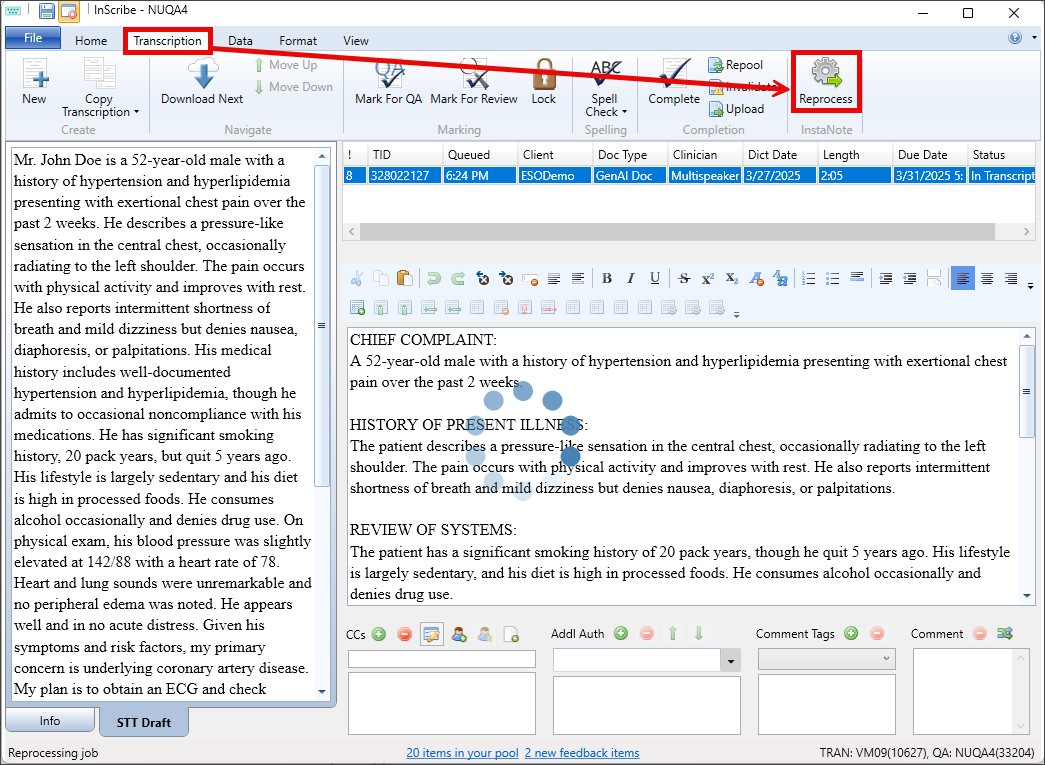
- The reprocess button will be disabled or removed if the dictation was not previously processed by ShadowScribe or if the document type or dictator do not have InstaNote Direct Delivery enabled.
- Processing time varies based on the length of the note and is considered complete when the blue processing status bubbles in the text editor disappear.
- Review the updated note.
- Review the reprocessed note in its entirety to confirm accuracy and completeness.
- To revert to the previously saved version of the note, press Undo in the editor toolbar.
- Upload the note.
- Complete and upload the note.