Reprocess Note in InQuiry
InstaNote's Reprocess feature enables InQuiry users to regenerate the AI processing of a delivered document using the original speech-to-text (STT) draft created when the dictation was received, along with the InstaNote configuration of the selected document type. Since the original dictation is not reprocessed, the turnaround time for the reprocessed note is faster. This feature is especially helpful when a dictation was submitted with an incorrect document type. By utilizing the reprocess feature, users can maintain the integrity and accuracy of clinical documentation, thereby enhancing the quality of patient care.
InstaNote documents can be reprocessed in InQuiry if the dictation was previously processed by ShadowScribe and both the dictator and selected document type have InstaNote Direct Delivery enabled.
How to Reprocess InstaNote in InQuiry
- Access the note.
- Log in to InQuiry.
- Navigate to the given workflow folder or Search All and location the note.
- Open the note in Edit mode.
- Verify the correct Document Type and Dictator are selected in the demographics.
- If the dictation was received with the incorrect document type or dictator, change these values before reprocessing the note.
- Reprocess the note.
- Expand the ellipsis menu in the upper right corner (if the menu is not docked).
- Press Reprocess Note
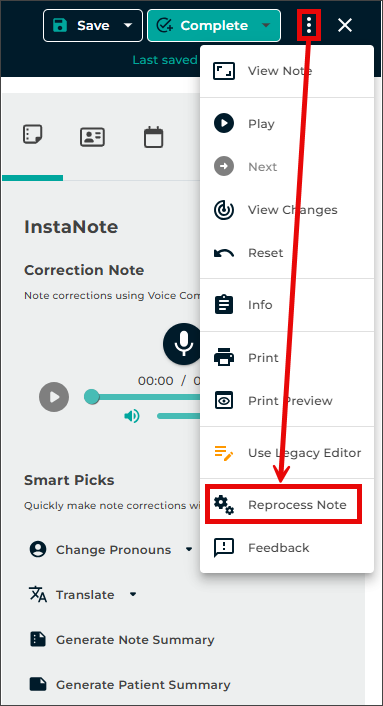
- The reprocess button will be disabled if the dictation was not previously processed by ShadowScribe or if the document type or dictator do not have InstaNote Direct Delivery enabled.
- Processing time depends on the length of the note and is completed when the "in process" message closes.
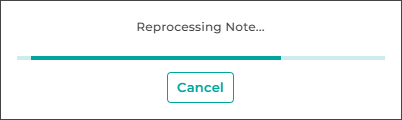
- Review the updated note.
- Review the reprocessed note in its entirety to confirm accuracy and completeness.
- To revert to the previously saved version of the note, press Undo in the editor toolbar or close the editing window without saving changes.
- Save changes.
- Save changes by either saving or completing the note (completing the note will advance it to the next stage of the workflow).
Important Information
Changes made as a result of reprocessing InstaNote documents are not saved until Save or Complete has been pressed.
The Complete button may also sign notes, depending on their position in the workflow.