MultiNote Has Moved
MultiNote is now available from the Patients tab. This change brings patient and appointment selection, and MultiNote creation together in one workflow.
What Changed?
The separate MultiNote tab is being retired and will be removed entirely on a date to be announced. You can now create a MultiNote from the Patients tab in either of the following ways:
- Select a patient or appointment from the schedule list to create a MultiNote associated with that patient or appointment.
- Select MultiNote in the upper-right corner of the Patients tab to create a MultiNote without selecting a patient.
All existing MultiNote functionality remains available in its new location.
Create a MultiNote for a Patient or Appointment
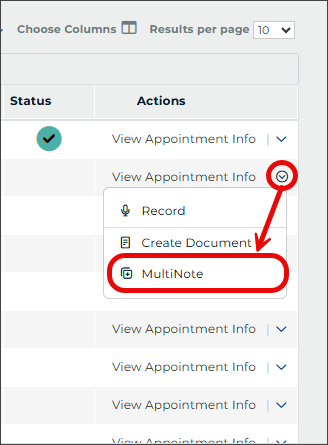
- Select the Patients tab.
- Locate the patient or appointment in the schedule list.
- Expand the menu in the Actions column and select MultiNote.
- Add and complete the notes using the MultiNote workflow.
Create a MultiNote Without a Patient
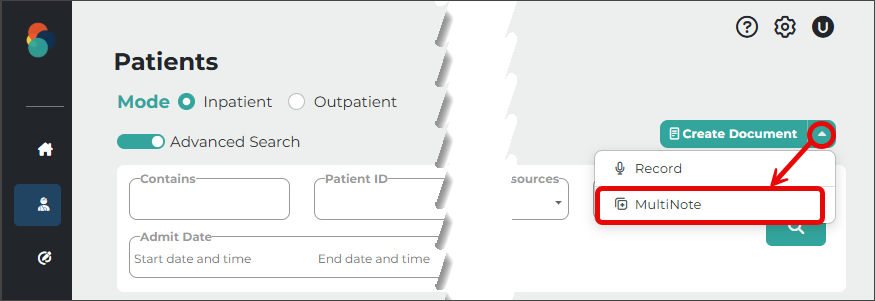
- Select the Patients tab.
- Expand the Actions menu in the upper-right corner of the page and select MultiNote.
- Add and complete the notes using the MultiNote workflow.
Why Did MultiNote Move?
Moving MultiNote to the Patients tab provides a more streamlined workflow by allowing you to begin a MultiNote from the same location where you access patient and appointment schedules. You can also continue to create a MultiNote without associating it with a patient.
Note
If you select the previous MultiNote tab, a message will direct you to the Patients tab. The MultiNote tab will be removed entirely on a date to be announced.